
How to Add a WordPress Post

How to Add a WordPress Post

Adding a post in WordPress is a core function for anyone running a blog or news-oriented website. Here’s a breakdown of the process:

1. Accessing the Post Editor:

  • Log in: Begin by logging into your WordPress dashboard.
  • Navigate: In the left-hand menu, find “Posts” and click “Add New.” This will open the WordPress block editor, where you’ll create your post.

2. Creating Your Post:

  • Title: Enter a compelling title for your post in the designated title field.
  • Content: Use the block editor to add your content. You can add text, images, videos, and various other media elements. WordPress uses “blocks” to organize content, making it flexible and user-friendly.
  • Categories and Tags:
    • Categories help organize your posts into broad topics.
    • Tags provide more specific keywords related to your post’s content.
    • Adding these helps readers find related content on your site.
  • Featured Image: Set a featured image to represent your post. This image will often appear at the top of your post and in blog listings.
  • Post Settings:
    • You can adjust various post settings in the right-hand sidebar, such as the author, publication date, and permalink (the post’s URL).

3. Publishing Your Post:

  • Preview: Before publishing, use the “Preview” button to see how your post will look on your website.
  • Publish: Once you’re satisfied, click the “Publish” button to make your post live. You can also schedule posts to be published at a later date.

Key Points:

  • WordPress Block Editor (Gutenberg): Familiarize yourself with the block editor, as it’s the primary tool for creating content in WordPress.
  • SEO: Consider search engine optimization (SEO) when writing your post. Use relevant keywords in your title and content, and optimize your featured image.
  • Consistency: Regularly publishing new posts helps keep your website fresh and engaging.

Image: Canva Pro
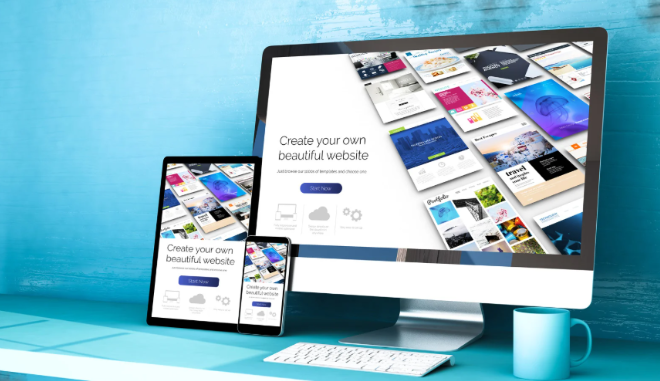
The Elements of WordPress ‘Appearance’

The Elements of WordPress 'Appearance'

The “Appearance” section of the WordPress dashboard is where you control the visual presentation of your website. It’s a crucial area for customizing your site’s look and feel. Here’s a breakdown of the key elements within the “Appearance” menu:

1. Themes:

  • Theme Selection:
    • This is where you can browse, install, and activate WordPress themes. Themes dictate the overall design and layout of your website.
    • You can choose from a vast repository of free themes from the WordPress.org theme directory, or install premium themes.
  • Theme Customization:
    • Each theme has its own set of customization options, which may include things like color schemes, fonts, and layout settings.

2. Customize:

  • WordPress Customizer:
    • The Customizer provides a live preview of your website as you make changes.
    • It allows you to adjust various aspects of your theme, such as:
      • Site identity (logo, site title, tagline)
      • Colors and backgrounds
      • Menus
      • Widgets
      • Homepage settings
      • And more, depending on the theme.

3. Widgets:

  • Widget Areas:
    • Widgets are small blocks of content that you can place in designated areas of your theme, such as sidebars and footers.
  • Widget Management:
    • You can add, remove, and rearrange widgets to customize the content displayed in these areas.
    • Common widgets include search bars, calendars, recent posts, and social media links.

4. Menus:

  • Navigation Menus:
    • This is where you create and manage your website’s navigation menus.
    • You can add links to pages, posts, categories, and custom URLs.
    • You can also create multi-level menus with sub-items.
  • Menu Locations:
    • Themes define where menus can be displayed on your website (e.g., header, footer).

5. Theme Editor:

  • Code Editing:
    • This section allows you to directly edit the code files of your active theme.
    • Caution:
      • This is an advanced feature, and incorrect edits can break your website. It’s generally recommended to avoid editing theme files directly unless you have coding experience.

Key Concepts:

  • Theme Flexibility:
    • WordPress themes provide a high degree of flexibility in customizing your website’s appearance.
  • User Experience:
    • The “Appearance” settings play a crucial role in creating a positive user experience.

By mastering these elements, you can create a visually appealing and user-friendly WordPress website.

The Basic Elements of WordPress

The Basic Elements of WordPress

WordPress, as a powerful content management system (CMS), is built upon several fundamental elements. Understanding these elements is crucial for effectively managing and customizing your WordPress website. Here’s a breakdown of the basic components:

1. WordPress Core:

  • This refers to the foundational files and code that make WordPress function. It’s the base software that powers your website.
  • These core files handle essential operations like database interactions, user management, and content processing.

2. WordPress Database:

  • WordPress uses a database (typically MySQL) to store all your website’s data, including:
    • Posts and pages
    • User information
    • Settings
    • Comments
  • This database is what allows WordPress to dynamically generate your website’s content.

3. WordPress Themes:

  • Themes control the visual appearance of your website. They determine the layout, design, and style.
  • Themes are collections of files (PHP, CSS, JavaScript) that work together to present your content.
  • You can choose from a vast library of free and premium themes to customize your site’s look.

4. WordPress Plugins:

  • Plugins extend the functionality of your WordPress website. They add new features and capabilities.
  • Plugins can perform a wide range of tasks, such as:
    • Improving SEO
    • Adding contact forms
    • Enhancing security
    • Creating e-commerce stores
  • Like themes, plugins are available in both free and premium versions.

5. WordPress Dashboard (wp-admin):

  • This is the administrative interface where you manage your WordPress website.
  • From the dashboard, you can:
    • Create and edit content
    • Manage users
    • Install themes and plugins
    • Configure settings

Key Concepts:

  • wp-content folder: this folder contains user uploaded content. Themes, plugins, and uploads are all contained within this folder.
  • Files: WordPress utilizes many files, and especially PHP files, to operate.
  • Users: WordPress has a user management system, that allows for different roles, and permissions.

By understanding these core elements, you can effectively build and manage a WordPress website that meets your needs.

The Basic Settings at WordPress

The Basic Settings at WordPress

When you’re setting up a WordPress website, there are several key settings that you’ll want to configure. These settings control various aspects of your site’s functionality and appearance. Here’s a breakdown of the most important ones:

1. General Settings:

  • Site Title and Tagline:
    • This is where you define the name of your website and a brief description. These are crucial for branding and SEO.
  • WordPress Address (URL) and Site Address (URL):
    • These settings determine the URLs where your WordPress files are located and where your website is accessed. In most cases, they’ll be the same.
  • Email Address:
    • This is the email address that WordPress will use to send administrative notifications.
  • Membership:
    • You can choose whether or not to allow users to register on your site.
  • Time Zone, Date Format, and Time Format:
    • These settings ensure that your website displays the correct time and date.

2. Writing Settings:

  • Default Post Category:
    • This setting allows you to select the default category for new posts.
  • This area also has some settings related to posting via email.

3. Reading Settings:

  • Your homepage displays:
    • You can choose whether your homepage displays your latest posts or a static page.
  • Blog pages show at most:
    • This setting controls the number of posts displayed on your blog pages.
  • Search Engine Visibility:
    • You can discourage search engines from indexing your site (useful during development).

4. Discussion Settings:

  • These settings control how comments are handled on your website, including:
    • Comment moderation
    • Email notifications
    • Avatar display

5. Media Settings:

  • These settings define the default image sizes that WordPress generates when you upload images.

6. Permalinks Settings:

  • Permalink structure:
    • This setting determines the URL structure of your posts and pages. It’s crucial for SEO. “Post name” is generally considered the best option.

7. Privacy Settings:

  • This is where you can manage your website’s privacy policy.

Key Takeaways:

  • Taking the time to configure these basic settings is essential for a well-functioning WordPress website.
  • Pay close attention to the permalink settings, as they have a significant impact on SEO.
  • Regularly review your settings to ensure they align with your website’s needs.
  • It is always a good idea to check your settings after installing a new theme, or plugin.

Image: Canva Pro

10 Reasons to Create a WordPress Website

10 Reasons to Create a WordPress Website

Creating a WordPress website offers numerous advantages, making it a popular choice for individuals and businesses alike. Here are some key reasons:

1.  Ease of Use:

  • WordPress boasts a user-friendly interface, making it relatively easy to create and manage a website, even for those with limited technical skills.
  • The visual editor and intuitive dashboard simplify content creation and website customization.

2.  Flexibility and Customization:

  • WordPress offers a vast library of themes and plugins, allowing for extensive customization to match any design preference or functionality requirement.
  • From simple blogs to complex e-commerce stores, WordPress can adapt to various website types.

3.  Large Community and Support:

  • WordPress has a massive and active community, providing ample support through forums, tutorials, and documentation.
  • This community ensures that help is readily available when needed.

4.  SEO-Friendly:

  • WordPress is inherently SEO-friendly, with clean code and customizable settings that enhance search engine visibility.
  • Numerous SEO plugins are available to further optimize website content and structure.

5.  Cost-Effectiveness:

  • WordPress itself is free and open-source, reducing initial setup costs.
  • While premium themes and plugins are available, many free options provide sufficient functionality for most websites.

6.  Scalability:

  • WordPress can grow with your website, accommodating increasing traffic and content volume.
  • Its scalable architecture ensures that your website can handle future growth.

7.  Content Management:

  • WordPress excels as a content management system (CMS), making it easy to create, edit, and organize website content.
  • It is very easy to add and edit blog posts, and pages.

8.  E-commerce Capabilities:

  • Plugins like WooCommerce transform WordPress into a powerful e-commerce platform, enabling online sales and transactions.

9.  Mobile Responsiveness:

  • Many WordPress themes are designed to be mobile-responsive, ensuring that your website looks great on all devices.

10. Large selection of plugins:

  • There are plugins for just about any function that you could imagine for a website.

Image: Canva Pro

The Benefits of Using the WordPress Website Platform

The Benefits of Using the WordPress Website Platform

WordPress has become a dominant force in web development, and for good reason. Its widespread popularity stems from a robust combination of user-friendliness, flexibility, and a supportive community. Here’s a breakdown of the key benefits of using the WordPress platform:   

1. User-Friendly Interface:

  • WordPress boasts an intuitive dashboard, making it accessible even for those with limited technical expertise.   
  • Creating and managing content, from blog posts to full-fledged pages, is straightforward.   
  • The Gutenberg block editor simplifies page layout, allowing users to visually construct their web pages. 

2. Flexibility and Customization:

  • WordPress offers a vast library of themes, providing diverse design options to suit any website’s aesthetic.   
  • Plugins extend WordPress’s functionality, enabling users to add features like e-commerce capabilities, contact forms, and SEO tools.   
  • This level of customization makes WordPress suitable for a wide range of websites, from personal blogs to complex business sites.   

3. Open-Source and Community Support:

  • As an open-source platform, WordPress benefits from a global community of developers who contribute to its ongoing improvement.   
  • This community provides extensive support through forums, tutorials, and online resources.   
  • Regular updates ensure that WordPress remains secure and up-to-date with the latest web standards.  

4. SEO-Friendly:

  • WordPress is built with SEO best practices in mind, providing a solid foundation for search engine optimization.   
  • Numerous SEO plugins, such as Yoast SEO, further enhance a website’s visibility in search results.   
  • This helps website owners to gain organic traffic.   

5. Mobile Responsiveness:

  • In today’s mobile-first world, WordPress themes are designed to be responsive, ensuring that websites look and function flawlessly on all devices.   
  • This provides a consistent user experience for visitors, regardless of whether they’re using a desktop, tablet, or smartphone.   

6. E-commerce Capabilities:

  • Plugins like WooCommerce transform WordPress into a powerful e-commerce platform.   
  • This allows businesses to easily create and manage online stores, process payments, and track inventory.   
  • WordPress itself is free to download and use.   
  • While premium themes and plugins are available, many free options provide excellent functionality.   
  • This makes WordPress a cost-effective solution for individuals and businesses on a budget.

In essence, WordPress provides a powerful and versatile platform that empowers users to create and manage their online presence with ease.   

Image: Canva Pro

How to Add a WordPress Page

How to Add a WordPress Page

Adding a page in WordPress is a straightforward process. Here’s a breakdown of the steps:

1. Log in to Your WordPress Dashboard:

  • Access your WordPress site’s admin area by adding “/wp-admin” to your website’s URL (e.g., yourwebsite.com/wp-admin).
  • Enter your username and password.

2. Navigate to Pages:

  • In the left-hand menu of your WordPress dashboard, find “Pages.”
  • Click on “Add New.”

3. Add a Title and Content:

  • You’ll see a title field at the top of the page editor. Enter the title of your new page.
  • Below the title field, you’ll find the content editor (Gutenberg block editor). This is where you’ll add the content of your page.
  • Use the block editor to add text, images, videos, and other media.

4. Customize Your Page (Optional):

  • Page Attributes: On the right-hand side of the editor, you can find options to set a parent page, choose a template, and adjust the order of your pages.
  • Featured Image: You can also add a featured image to your page.
  • Discussion: You can choose to allow or disallow comments on your page.

5. Preview and Publish:

  • Before publishing, click the “Preview” button to see how your page will look.
  • If you’re satisfied with the preview, click the “Publish” button to make your page live.

Key Considerations:

  • Gutenberg Block Editor: WordPress uses the Gutenberg block editor, which allows you to add various content elements as “blocks.”
  • Page Templates: Some WordPress themes offer custom page templates, which provide different layouts and designs.
  • Navigation Menus: After publishing your page, you may need to add it to your website’s navigation menu so visitors can easily find it. You can do this by going to “Appearance” > “Menus” in your WordPress dashboard.

I hope this helps!